How Can I Make an Invoice in Excel? The Easy Way
You finished the project, the client said, “Send me an invoice,” and now you’re staring at a blank Excel spreadsheet, wondering how to make an invoice in Excel. No template, no invoicing software, no idea what’s supposed to go on this thing.
You just want to get paid.
Good news: learning how to make an invoice in Excel takes about 20 minutes the first time, and the template you create will work for every client after that. There’s no US federal law telling you exactly what an invoice must look like.
What matters is that it’s clear, includes the right information for your records and theirs, and gets sent as a PDF so it looks professional on every screen.
This guide walks through how to make an invoice in Excel from a blank workbook, the formulas you need, what must actually appear on a US freelance invoice, and the free templates that skip the build entirely if you’d rather start faster.
Quick Takeaways
- No US federal law prescribes a specific invoice format, but IRS Publication 583 requires invoices as supporting documents for your income
- Every invoice needs seven core elements: your info, client info, invoice number, dates, line items, total, and payment terms
- The key formulas: =C14*D14 for line amounts, =SUM(E14:E23) for subtotal, =ROUND(E25*E26,2) for tax, =E25+E27 for total
- Always send as PDF, never as .xlsx — PDFs can’t be edited and hide your other spreadsheet tabs
- Under ~5 invoices a month, Excel works indefinitely. Past 20, free invoicing software like Wave or Zoho Invoice saves real time
What to Include When You Make an Invoice in Excel?
Your business name and contact info, the client’s name, a unique sequential invoice number, the invoice date and a specific due date, itemized services with quantities and rates, subtotal, tax if applicable (separately stated), the total, accepted payment methods, and your late-fee terms. The IRS doesn’t mandate a format, but it does require invoices that substantiate your reported income.
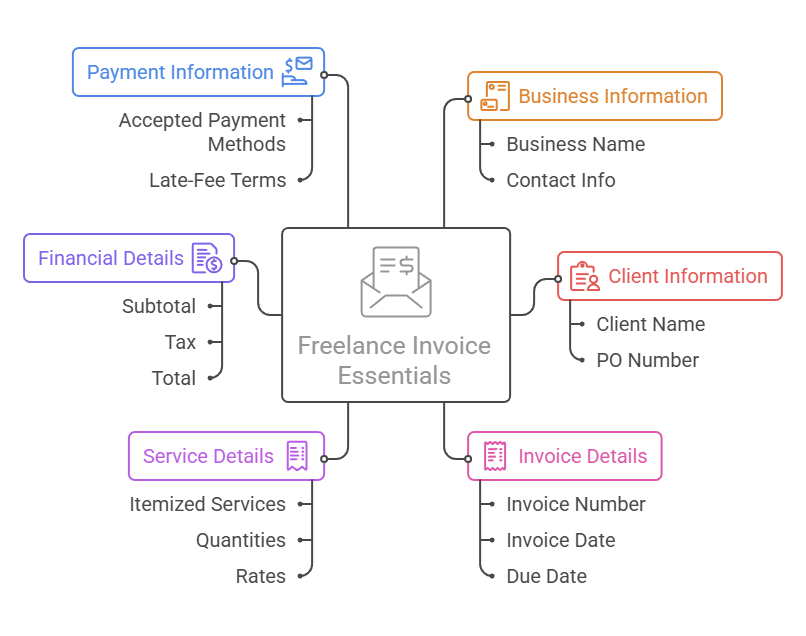
The IRS treats invoices as “supporting documents” under Publication 583. They need to identify the payee, the amount, the date, and a description of the service or product. Your invoice is that record for your client. The copy you keep is that record for you.
State sales tax adds one rule worth knowing: if you collect sales tax, most states require it to be separately stated on the invoice.
New York goes further, explicitly citing the absence of sequentially numbered invoices as evidence of inadequate recordkeeping.
The things freelancers most commonly forget to include:
- A specific due date (not just “Net 30,” which means nothing to clients unfamiliar with accounting shorthand)
- The client’s PO number if they have one (corporate AP departments often won’t process payment without it)
- Late-fee terms stated in writing on the invoice. Standard rate is 1.5% per month (18% annualized), enforceable in all 50 states when disclosed before work begins.
And if you’re wondering whether knowing how to make an invoice in Excel looks unprofessional compared to one from QuickBooks or FreshBooks: it doesn’t. Clients in AP departments care that the PDF is clean, has a clear invoice number, and itemizes line items.
The software that generated it is invisible to them.
How Do You Make an Invoice in Excel From Scratch?
Open a blank workbook, set up a 5-column layout, add your header with a logo and invoice details, build the line-item section with one multiplication formula per row, add subtotal/tax/total formulas at the bottom, and save it as a reusable .xltx template. Twenty minutes, start to finish.
Of course, this works on Google Sheets or the online version of Excel as well. And if you want to skip this building process and just get started, we made the template you can copy here.
Make an Invoice in Excel _ Template
Start with page setup
Open a blank workbook. Go to Page Layout and uncheck View Gridlines so the printed page doesn’t look like a spreadsheet.
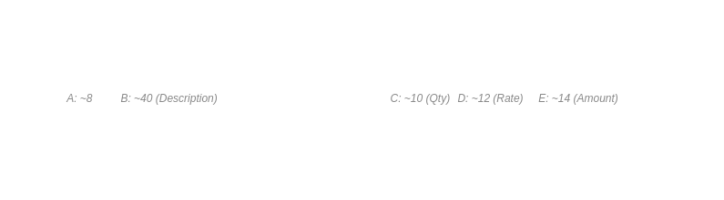
Set orientation to Portrait, paper size to Letter. Set your column widths: A narrow for line numbers (~8), B widest for descriptions (~40), C for quantity (~10), D for rate (~12), E for amount (~14).
Build the header
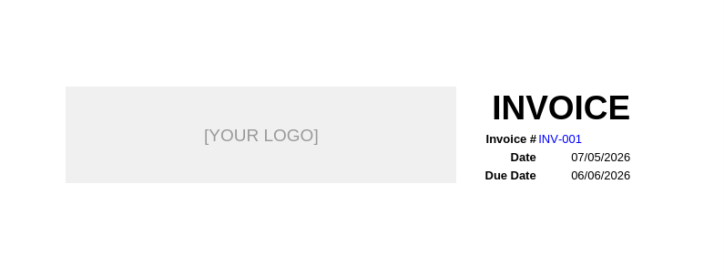
Merge cells A1 through C4 for your logo.
Insert your image via Insert → Pictures, then right-click → Size and Properties → “Move and size with cells” so it stays anchored when you resize. In D1, type “INVOICE” in large bold text (28pt, right-aligned).
Below that: D2 for “Invoice #” with the number in E2, D3 for “Date” with =TODAY() in E3 (more on this in a moment), and D4 for “Due Date” with =E3+30 in E4 for Net 30 terms.
One important note on =TODAY(): this formula updates every time the workbook opens. That’s useful in the template file, but before you send an invoice, paste the actual date as a value (copy the cell, right-click, Paste Special → Values).
Otherwise, the date changes if the client opens it a week later.
Add the From and Bill To blocks.
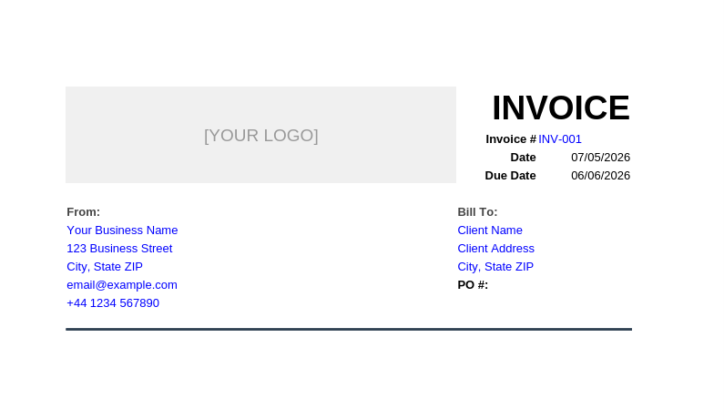
Your business name, address, email, and phone on the left side (rows 6–10). Client name and address on the right. If the client gave you a PO number, include a field for it here. If you’re not sure why a client sends one in the first place, our purchase order vs invoice guide explains the difference.
Build the line-item table
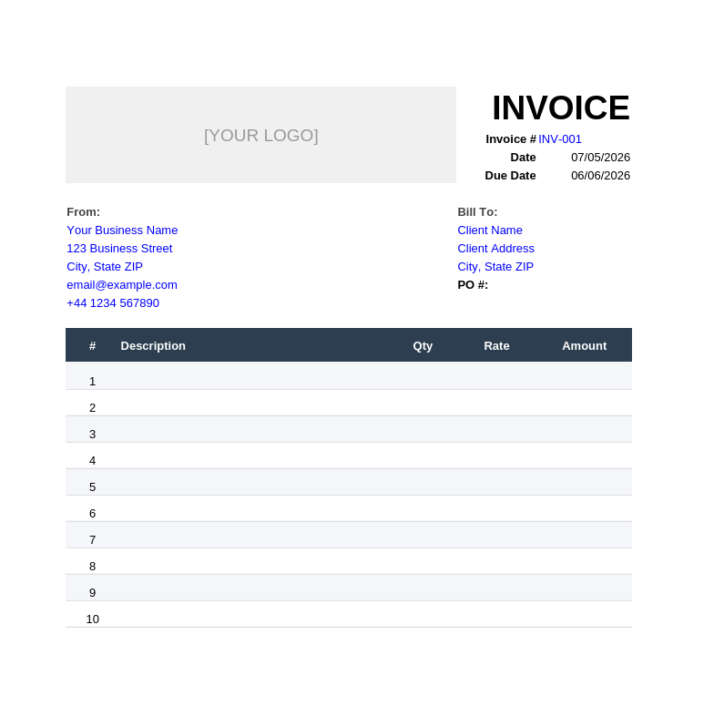
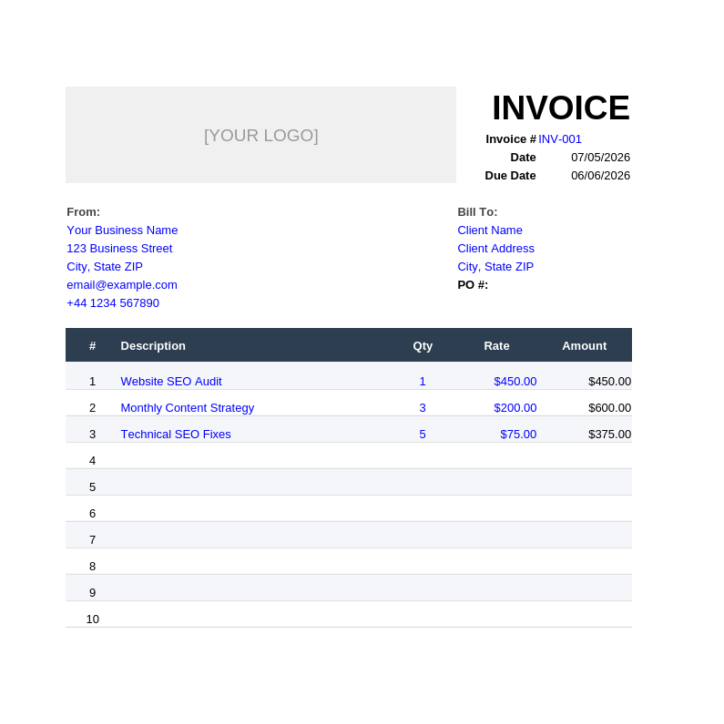
Row 13 is your header: #, Description, Qty, Rate, Amount. Format it bold with a subtle fill color. Below that, pre-populate about 10 blank rows (14–23). In the Amount column, E14, enter: =IF(C14=””,””,C14*D14).
This multiplies quantity by rate when both cells have values and shows nothing when the row is empty. Drag the formula down through E23.
Add the totals
In E25, enter =SUM(E14:E23) for the subtotal.
If you expect to add rows later, use =SUM(E14:E50) instead, which won’t break when you insert new line items. In E26, enter your tax rate as a decimal (0.0875 for 8.75%, or 0 if you don’t collect sales tax). In E27: =ROUND(E25*E26,2) for the tax amount.
The ROUND function prevents the penny-rounding errors that happen when Excel calculates tax at full decimal precision.
In E28: =E25+E27 for the grand total. Format all amount cells as Accounting format (the $ dropdown on the Home ribbon), which aligns dollar signs and decimals cleanly down the column.
Add payment terms and notes
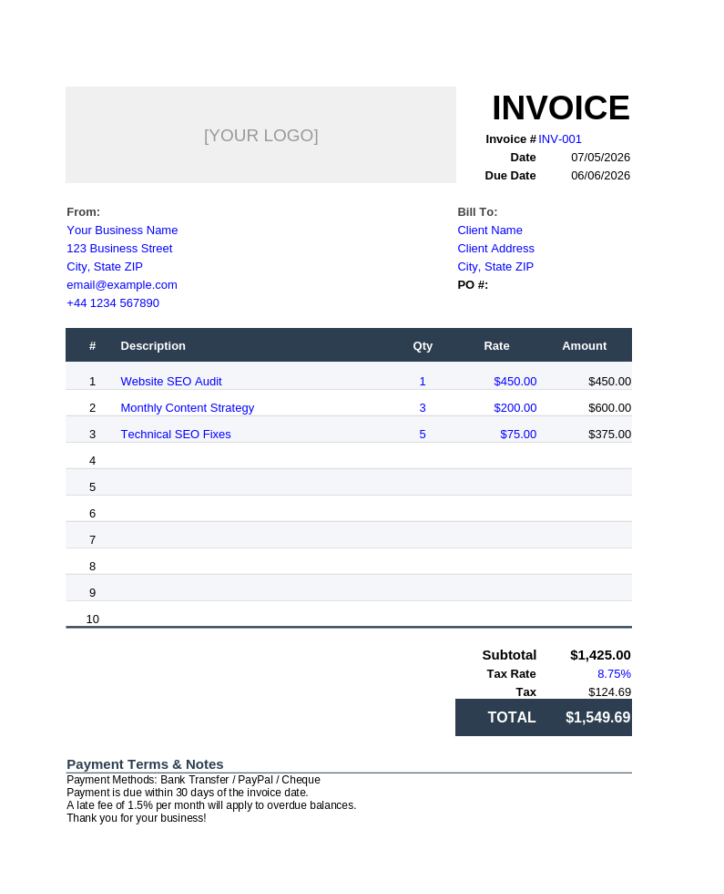
Merge a block of cells across the bottom (rows 30–34), enable Wrap Text, and type your payment instructions: accepted methods (bank transfer, Venmo, PayPal, check), your late-fee policy, and any project reference or thank-you note.
Protect the formulas
Select all cells (Ctrl+A), open Format Cells → Protection tab, uncheck “Locked.” Then select only your formula cells (E14:E23, E25, E27, E28), re-open Protection, and check “Locked.” Go to Review → Protect Sheet.
Now you can type descriptions and amounts into any cell without accidentally overwriting a formula.
Save as a reusable template
File → Save As → change file type to Excel Template (.xltx). Next time you need an invoice, go to File → New → Personal tab, and the template opens as a fresh copy with all your formulas and formatting intact.
No more duplicating files and forgetting to update the invoice number.
How Do You Save and Send an Excel Invoice?
Save as PDF, not .xlsx. File → Save As → PDF (or File → Export → Create PDF/XPS). Name it with the invoice number, client, and date: Invoice_2026-015_AcmeCorp_2026-04-30.pdf. Always PDF.
PDFs can’t be edited by the recipient (an .xlsx can, including the amount column).
They render identically on every device. And they hide your other spreadsheet tabs. If a client’s AP system specifically requests an editable file for line-item ingestion, send the PDF as the official invoice and the .xlsx as a separate data attachment.
The naming convention matters when you have 50+ invoices in a folder: invoice number first for easy reference, then client shortname, then ISO date (YYYY-MM-DD) so files sort chronologically. Underscores only, no spaces.
Can You Make an Invoice in Google Sheets Instead?
Yes. Every formula in the Excel build works identically in Google Sheets: =C14*D14, =SUM(…), =ROUND(…), =TODAY(), =IF(…). Sheets is free, collaboration is built in, and version history is automatic. The main trade-off is that Sheets doesn’t have a .xltx template feature. You save your master and use File → Make a Copy each time.
Sheets has one invoicing advantage Excel doesn’t: =ARRAYFORMULA(IF(C14:C23=””,””,C14:C23*D14:D23)) lets you write the line-item math once in E14 and it fills the entire column automatically.
No dragging formulas.
For PDF export, go to File → Download → PDF.
Set paper size to Letter, orientation to Portrait, and untick “Show gridlines.” Google’s own template gallery (File → New → From template gallery → Invoice) has one basic template.
Vertex42 and Smartsheet publish more polished Sheets-native versions.
For a freelancer issuing 5–20 invoices a month who doesn’t already pay for Microsoft 365, Sheets is the lower-friction choice. Both produce identical PDFs. Use whichever you already have open.
Are There Free Excel Invoice Templates Worth Using?
Yes. Three sources stand out. Microsoft Create offers first-party templates with working formulas, no signup required. Vertex42 has published Excel templates for over 20 years and is the most respected independent source. Smartsheet has the largest free library with 50+ designs across formats. All three include actual SUM and multiplication formulas, not just formatted layouts.
If you want a template you can fill in within 5 minutes, Microsoft Create’s “Service Invoice” is the cleanest starting point.
If you want something with more structure (invoice tab plus a tracker tab), Vertex42 is the pick. If you need an industry-specific style, Smartsheet’s variety is hard to match.
Skip templates from HubSpot (email-gated lead generation), and be cautious with Etsy sellers (inconsistent formula quality, no US tax compliance).
Our guide to Excel for small business accounting covers broader template recommendations beyond invoicing.
If you’d rather build your own from scratch, the walkthrough above gives you a template that’s exactly tailored to your business. Either path works. The template just saves you the 20-minute setup of learning how to make an invoice in Excel from scratch.
When Should You Stop Making Invoices in Excel?
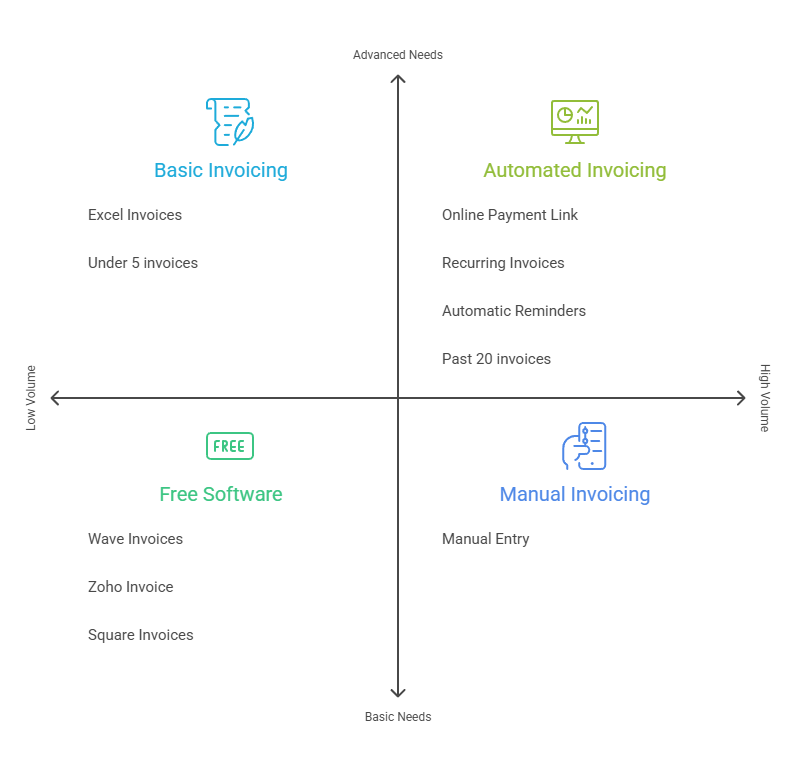
When you want clients to pay online through a link in the invoice, when you’re sending more than about 20 invoices a month, or when you need recurring invoices for retainer clients. Free tools like Wave, Zoho Invoice, and Square Invoices handle all of that without a monthly fee.
Knowing how to make an invoice in Excel is great for creating them.
It’s weak at everything that happens after you hit send.
There’s no “Pay Now” button for clients to click (FreshBooks data across 1.39 million invoices found that offering online payment and specifying terms significantly improved collection rates).
No automatic status tracking when payment arrives. No auto-reminders before or after due dates. No recurring invoices for monthly retainers. No client portal.
And no protection against the “Invoice_FINAL_v3.xlsx” version-control problem that every Excel invoicer knows too well.
Those are exactly the problems freelance billing software is designed to solve once spreadsheets start becoming too limiting.
So where’s the line?
Under about 5 invoices a month, Excel works indefinitely.
Between 5 and 20, free invoicing software saves more time than it costs to learn. Past 20 or with any recurring billing, dedicated software is close to mandatory.
The free options are genuinely free.
Wave Starter gives you unlimited invoices at $0/month. Zoho Invoice is free with 500 invoices per year, auto-reminders, and a client portal. Invoice Ninja is free and open source for up to 20 clients.
Once you’ve sent the invoice, the work shifts from creation to collection. Our guide to keeping track of invoices covers the 15-minute weekly system that makes sure nothing slips through.
And if you need more than just basic invoicing in Excel, we’ve broken down the best invoicing tools for freelancers.
Make an Invoice in Excel Once, Get Paid Forever
Once you know how to make an invoice in Excel, it takes 20 minutes to build and 5 minutes to fill out every time after that. It costs nothing, it looks identical to a software-generated invoice once it’s a PDF, and the IRS doesn’t care whether it came from a spreadsheet or a $50/month platform.
Build the template. Number your invoices sequentially. Send as PDF. And start the weekly tracking habit that turns invoicing from a source of anxiety into a 15-minute Friday routine.
The invoice is the easy part. Getting paid on time is the system.
Frequently Asked Questions
How do I make a simple invoice in Excel?
Create a spreadsheet with your business information, the client’s details, an invoice number, invoice and due dates, itemized services, rates, quantities, and a total amount due. Once complete, save the invoice as a PDF before sending it to the client.
Is Excel good for an invoice?
Yes. Excel works well for freelancers and small businesses that send fewer than 5 invoices each month. It gives you full control over the layout and costs nothing if you already have Excel. However, it lacks features such as online payments, automatic reminders, recurring invoices, and payment tracking.
What should be included on an invoice?
Every invoice should include your business information, the client’s information, a unique invoice number, the invoice date, a specific due date, a description of the services provided, the amount due, and payment instructions. If you charge sales tax, it should be listed separately.
Can I use Google Sheets instead of Excel for invoices?
Yes. Google Sheets supports the same formulas and invoice structure as Excel while adding cloud storage, collaboration, and automatic version history. Both tools can generate professional PDF invoices that clients can easily review and pay.
When should I switch from Excel to invoicing software?
Excel works well for freelancers sending fewer than five invoices per month. Between roughly 5 and 20 invoices per month, dedicated invoicing software starts to save enough time to justify the switch. Once you start sending more than 20 invoices a month or need features like online payments, recurring billing, and automatic reminders, invoicing software is practically indispensable.
Related guides: best invoicing tool for freelancers · accounting software for small business in excel · how to keep track of invoices · purchase order vs invoice · freelance billing software