The Best Free Google Sheets Invoice Template: Make Your Own

Picture the invoice you built in a word processor: you list three items, tot them up in your head, type the total, add the tax, and send it off. It seems simple enough — especially when a Google Sheets invoice template feels like overkill.
Then the client emails back — the subtotal doesn’t match the line items.
You did the math by hand, and hand-math on money is exactly where small, embarrassing mistakes creep in.
Or there’s the monthly version of the same problem: rebuilding the same invoice from scratch every single month, re-typing the same figures, hoping you didn’t fat-finger a number.
A spreadsheet fixes both.
A Google Sheets invoice does the arithmetic for you — every line total, the subtotal, the tax, and the grand total update themselves the moment you type a number — and you can copy the whole thing in seconds for the next client or the next month.
No mental math, no mismatched totals, no rebuilding.
Below is a free Google Sheets invoice template you can grab right now, plus a step-by-step guide to building your own (with the actual formulas), what to put on it, and how to send it so you actually get paid.
Quick Takeaways
- Our free Google Sheets invoice template auto-calculates every line total, the subtotal, tax, and the grand total — you just fill in the details.
- Sheets beats Docs when you want the math done for you and to reuse invoices; Google Docs is fine for a single, simple invoice you’ll type up and print.
- Building your own is quick: a line-item table using =Qty*Rate, a =SUM subtotal, a dedicated tax-rate cell, and a total formula.
- Duplicate the tab for each new invoice so you keep a clean record in one file and never rebuild from scratch.
- Always export to PDF before sending — never email the live, editable sheet.
Get the free Google Sheets invoice template
Download the template, open it in Google Sheets with File ▸ Make a copy, and fill in your business and client details plus your line items — the amounts, subtotal, tax, and total all calculate automatically.
Duplicate the tab for each new invoice, then export to PDF to send. It’s set up so the only thing you ever type is the plain information; the math takes care of itself.
Here’s the whole process with the template:
- Make a copy. Open the file in Google Sheets and choose File ▸ Make a copy so you have your own editable version (and keep the original clean).
- Fill in your details and the client’s. Your name/business, contact, and tax number at the top; the client’s details in the “Bill to” block; and an invoice number, issue date, and due date.
- Add your line items. Type a description, quantity, and rate on each row — the Amount column fills itself (it’s Qty × Rate).
- Set your tax rate. Enter your rate in the tax-rate cell; the tax and grand total update instantly.
- Duplicate the tab per invoice. Right-click the sheet tab ▸ Duplicate for each new invoice, so every one lives in the same file as a record.
- Download as a PDF. File ▸ Download ▸ PDF, and email that to your client.
The template already includes auto-calculating line totals, a subtotal, a tax-rate cell, a discount line, and a bold grand total, plus a payment-details block and a worked example row so you can see exactly how it fits together.
Google Docs or Google Sheets for invoices?
Use Google Sheets when you want automatic calculations, itemized lists, or to reuse invoices. Use Google Docs for a single, simple invoice you’ll just type up and print. The short version: Sheets does the math, Docs doesn’t.
Google Docs has no calculation engine, so every total is something you work out and type by hand — fine for one clean invoice, risky once you’ve got multiple line items, a tax rate, or a discount in play.
Sheets, by contrast, is built for exactly this: formulas total the lines, apply the tax, and recalculate the moment anything changes, and you can copy an invoice or keep a running list without rebuilding.
If your invoicing is simple and you like a document you can style and print, the Google Docs invoice template is the better fit. If you want the numbers handled for you, stay in Sheets.
How to make an invoice template in Google Sheets, step by step

To build one, create a header with your business details, add a bill-to and invoice-number block, then a line-item table where Amount = Qty × Rate, followed by a subtotal using =SUM, a tax-rate cell, and a total — and format the money cells as currency.
It takes about fifteen minutes, and you only build it once.
- Header block. In the top rows, add the word “Invoice,” your business name and contact details, and your tax or VAT number if you have one.
- Bill-to and invoice details. Add a block for the client’s name and contact, plus cells for the invoice number, issue date, and due date.
- Line-item table. Make four columns — Description, Qty, Rate, Amount. In the first Amount cell, type =C15*D15 (using your Qty and Rate cells), then drag it down the column so every row calculates its own total.
- Subtotal. Under the table, add a Subtotal cell with =SUM(E15:E22), covering your Amount rows. Google Sheets’ SUM function adds the values in a specified range, so the subtotal updates automatically whenever one of your line amounts changes
- Tax. Give tax its own rate cell (say 20% or 0%), then calculate the tax as =Subtotal*TaxRate — for example =E24*E25. The advantage of a dedicated rate cell is that you change the rate once, and every invoice updates accordingly.
- Total. Add the grand total as =Subtotal+Tax-Discount, so it always reflects the lines above it.
- Format as currency. Select the Rate, Amount, and total cells, and click the $ button (or Format ▸ Number ▸ Currency) so everything shows as money.
- Payment details. Finish with a block for your payment terms (Net 14/Net 30), how to pay (bank details or a pay link), and a short thank-you note.
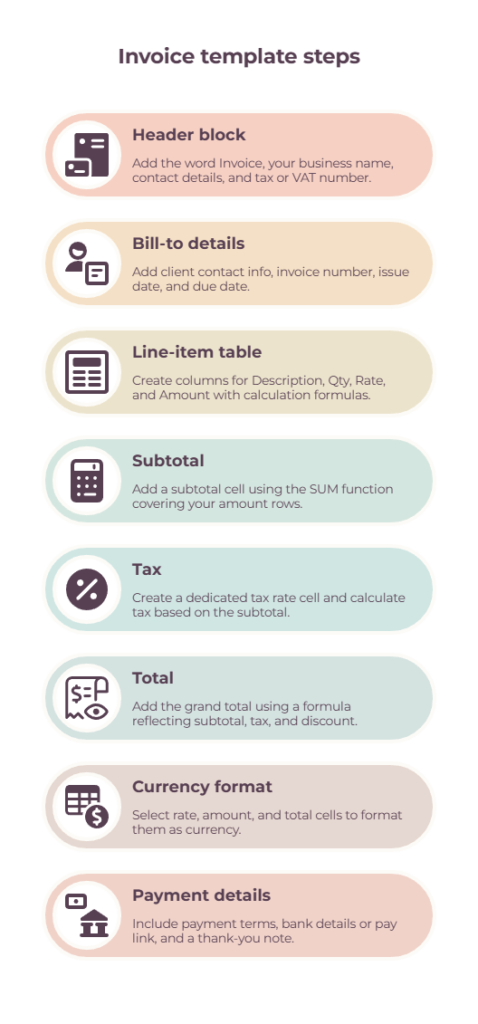
That’s the entire machine: type plain information into the white cells, and the formulas do the rest.
Once it’s built, you never touch the math again.
What to include on your invoice
Every invoice needs the word “Invoice,” a unique invoice number, your details and the client’s, the issue and due dates, an itemized list of the work, the total, and your payment terms and accepted methods.
Missing any of these gives a client a reason to query it or delay paying.
The invoice number matters more than it looks — it’s your reference for records and tax, and it lets you and the client point at a specific invoice cleanly when following up.
For the full field-by-field breakdown of what belongs on an invoice and why, see how to send an invoice.
How to send your Google Sheets invoice
Export the finished sheet to PDF (File ▸ Download ▸ PDF) and email that — never send the live, editable sheet — with a short covering note and a clear subject line.
A PDF looks professional and is much harder to alter, whereas a shared Sheets link can be edited by anyone with access and looks unfinished.
Keep the email itself short: a subject line like “Invoice #0007 — [Project] for [Client],” and a friendly line or two stating what it’s for, the total, the due date, and how to pay.
For copy-paste covering-email and follow-up templates — including how to chase a late payment without the awkwardness — see how to send an invoice.
Tips to get more out of your template
A few small additions turn the template from “fine” into genuinely low-effort:
- Duplicate the tab for each new invoice. Right-click the sheet tab ▸ Duplicate. Every invoice lives in one file as its own record, so you’re never rebuilding or hunting for old ones.
- Protect the formula cells. Select the Amount, subtotal, tax, and total cells and use Data ▸ Protect range, so you can’t accidentally type over a formula.
- Freeze the header row. View ▸ Freeze so your column labels stay put on longer invoices.
- Add a services drop-down. If you sell the same handful of services, a Data ▸ Data validation drop-down in the Description column speeds up filling it in.
- Keep a tracker tab. Add a second tab that lists each invoice, its amount, and whether it’s paid — or use our ready-made invoice tracker — so you can see what’s outstanding at a glance.
- Set the print area. File ▸ Print ▸ set the range so your PDF exports clean, with no stray empty columns.
When to move from a spreadsheet to invoicing software
A Google Sheets template is ideal while you have a handful of clients — it’s free, flexible, and completely under your control.
Once you’re sending a lot of invoices, though, doing it all by hand starts to cost you: manually numbering each one, remembering who’s paid, and chasing late payers yourself.
That’s the point where dedicated invoicing software earns its keep, auto-numbering invoices, tracking payments, and sending reminders for you.
If you’re ready to compare options, see our guide to the best invoicing tool for freelancers for the strongest choices at different stages of your business.
There’s no rush — plenty of freelancers run on a spreadsheet for years — but when the manual admin starts eating your time, see invoice management system and invoice automation for freelancers for what to move to.
The bottom line
A Google Sheets invoice does the math for you, keeps your records in one file, and copies in seconds — which makes it one of the easiest ways for a freelancer to invoice without paying for anything.
Grab the free template, make it your own, and your next invoice can go out in minutes, totals already added up.
When you outgrow the manual side of it, invoicing software is there — but there’s no need to rush.
Frequently Asked Questions
Does Google Sheets have an invoice template?
Google Sheets includes a basic template gallery, but the built-in options are limited.
For freelancing, you’re better off with a purpose-built template like the free one above, which auto-calculates line totals, subtotal, tax, and the grand total and is laid out for client work.
How do I create an invoice template in Google Sheets?
Add a header with your business details, a bill-to block with an invoice number and dates, and a line-item table with Description, Qty, Rate, and Amount columns.
Set Amount to =Qty*Rate, add a =SUM subtotal, a tax-rate cell with =Subtotal*TaxRate, and a total, then format the money cells as currency.
How do I make the totals calculate automatically?
Use formulas. In the Amount column, type =C15*D15 (your Qty times Rate cells) and drag it down.
For the subtotal, use =SUM() across the Amount cells, calculate tax as the subtotal times a tax-rate cell, and set the total to subtotal plus tax minus any discount. The numbers then update themselves as you type.
Should I use Google Docs or Google Sheets for invoices?
Use Google Sheets if you want automatic calculations, multiple line items, tax, or to reuse invoices — the formulas do the math.
Use Google Docs for a single, simple invoice you’ll type up and print, since Docs can’t calculate totals for you.
How do I send a Google Sheets invoice?
Export it to PDF with File ▸ Download ▸ PDF and email the PDF to your client — don’t send the live, editable sheet.
Add a short covering email with a clear subject line, the total, the due date, and how to pay.
Is there a free Google Sheets invoice template?
Yes — the template above is free. Open it, choose File ▸ Make a copy, and fill in your details; the totals, tax, and grand total calculate automatically, and you can duplicate the tab for each new invoice.
Related guides: Google Docs invoice template · how to send an invoice · invoice tracker · invoice management system · invoice automation for freelancers · best invoicing tool for freelancers