Google Docs Invoice Template: Surprisingly Handy and Free to Use

You open Google Docs, head to the template gallery expecting a ready-made invoice to fill in, and… there isn’t one. Just letters, resumes, and meeting notes. Confusingly, Google Sheets does have an invoice template — Docs doesn’t.
But that doesn’t mean Google Docs isn’t a perfect place to make a simple, free, professional invoice. It just doesn’t hand you a template to start from.
So you have two easy options: copy a good template someone has already built, or make a reusable one yourself in a few minutes.
This guide gives you both — plus everything a professional invoice needs and the point at which a proper invoicing tool starts to beat a doc.
Grab the free Google Docs invoice template
Our free freelancer invoice template has everything a professional invoice needs — your business details, an invoice number and dates, the client’s information, an itemized table, totals, and payment terms — and you can copy it into your own Google Drive in one click.
Replace the bracketed placeholders with your details, and it’s ready to send.
Here’s how to use it: open the free invoice template, go to File → Make a copy to save your own version, then fill in everything in [brackets] — your business name, the client, the line items, and the total.
When it’s ready, download it as a PDF (File → Download → PDF) and email it to your client. Keep the original untouched as your master, and make a fresh copy for each new invoice.
Quick Takeaways
- The standard Google Docs template gallery doesn’t currently include an invoice template — you either copy one or make your own.
- Our free template covers every field a professional invoice needs, and copies into your Drive in one click.
- To build your own, you need a header, an invoice number and dates, a “bill to” block, an itemized table, and totals.
- Save one master template and use File → Make a copy for each new invoice so you never overwrite it.
- Google Docs is great for a handful of invoices; switch to invoicing software once you want reminders, payments, and tracking.
Does Google Docs have an invoice template?

The standard Google Docs template gallery does not currently include a dedicated invoice template. To invoice in Google Docs, you either copy a ready-made template — like the free one above — or build your own, and both take just a few minutes.
That missing template is exactly why most people search for this in the first place.
The Docs gallery covers letters, resumes, project proposals, and meeting notes, but not invoices. Google Sheets does include one, filed under the Work category, which is worth knowing if you’d rather have a template that adds up your line items for you.
Gallery contents also vary by account — Workspace users may see templates their organization has added.
That leaves two good routes: grab a well-made third-party template (ours, or one from the community), or spend five minutes making your own reusable version, which you’ll only ever have to do once.
What to include on a freelance invoice
A professional invoice needs your business details, a unique invoice number, the issue and due dates, the client’s details, an itemized list of the work with quantities and rates, the subtotal, any tax, the total due, and clear payment terms.
Miss one of these and you invite a query — and a delay.
Here’s the full checklist:
- Your business name and contact details — name, email, and phone or address.
- A unique invoice number — so you (and the client) can reference it later.
- The issue date and a due date — when you sent it and when payment is expected.
- “Bill to” — the client’s details — company name, contact, and address.
- Itemized line items — a description of each service, the quantity, the rate, and the amount.
- Subtotal, tax, and total due — with any tax rate shown clearly.
- Payment terms and how to pay — for example, Net 15, plus your bank details or a payment link.
- A short note — a thank-you, and a late-fee line if you charge one.
If you need to show a client the expected charges before issuing the final invoice, you may want to use a pro forma invoice instead.
For the deeper how-to on wording, terms, and getting paid, see how to invoice as a freelancer.
How to make an invoice in Google Docs, step by step
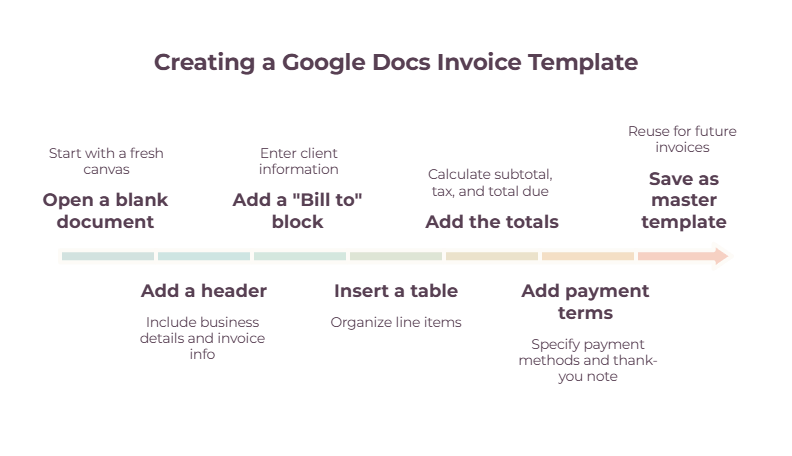
To build your own invoice template, open a blank Google Doc, add your business details and the word “Invoice,” insert a table for the line items, add the totals below it, and include your payment terms — then save it as your reusable master.
It’s a one-time job that takes about five minutes.
- Open a blank document at docs.new or from your Google Drive.
- Add a header with your business name, the word “Invoice,” your invoice number, and the issue and due dates.
- Add a “Bill to” block with the client’s name and details.
- Insert a table (Insert → Table) with four columns: Description, Qty, Rate, and Amount, plus a few blank rows.
- Add the totals below the table — subtotal, tax, and total due.
- Add your payment terms and how to pay (bank details or a payment link), plus a thank-you note.
- Save it as your master template, and make a copy each time you invoice.
One thing worth knowing: Google Docs won’t calculate your totals for you — it’s a word processor, not a spreadsheet. If you’d like the math done automatically, build the same layout in Google Sheets instead, where a simple formula can total the amounts.
How to reuse your invoice template without rebuilding it
Keep one master copy of your template and use File → Make a copy for each new invoice, renaming it with the client’s name and the invoice number — so you never overwrite the original, and every invoice you’ve sent stays saved in your Drive. The make-a-copy habit is the whole trick.
That gives you a tidy folder of every invoice you’ve issued, which makes reconciling and tax time far easier.
If you’re on Google Workspace, you can also save the doc as a custom template in your organization’s gallery.
Either way, always send the final version as a PDF so the client can’t accidentally edit it.
Is Google Docs good for invoicing?
Google Docs is a great choice when you send a handful of invoices and want something free and simple. Once you want automatic payment reminders, online payment links, status tracking, or recurring invoices, a dedicated invoicing tool will save you real time.
It comes down to how much invoicing you’re doing.
The honest limits of a Google Docs invoice: it won’t chase late payers for you, it can’t show you which invoices are paid or overdue, clients can’t pay it in one click, and it won’t handle recurring retainer billing — all of which you do by hand.
For a few invoices a month, that’s fine. Past that, the admin adds up, and it may be worth comparing the best invoicing tools for freelancers to find something that handles the repetitive work for you.
When you reach that point:
- Free invoicing tools like Wave let you send invoices and take card or bank payments on the free plan (you pay the usual processing fees per transaction, and automated payment reminders sit on its paid Pro tier) — see our guide to freelance billing software.
- To track every invoice from sent to paid, build an invoice management system.
- To put the repetitive parts on autopilot, see invoice automation for freelancers.
The bottom line
Google Docs doesn’t give you an invoice template, but you’re a couple of minutes from a great one either way — copy the free template above, or build your own reusable version.
Both let you send a clean, professional invoice today, for nothing. When the manual side starts eating your time, that’s your cue to move up to a proper invoicing tool.
Frequently Asked Questions
Does Google Docs have an invoice template?
Not in the standard template gallery, as things currently stand. To invoice in Google Docs, copy a ready-made template (like the free one in this guide) or build your own using a table for the line items — both take only a few minutes.
Google Sheets does have an invoice template in its gallery if a spreadsheet suits you better.
How do I make an invoice in Google Docs?
Open a blank document, add your business details and the word “Invoice” with an invoice number and dates, add a “bill to” block for the client, insert a four-column table (Description, Qty, Rate, Amount), add the subtotal, tax, and total below it, and include your payment terms. Save it as your reusable master.
Is there a free Google Docs invoice template?
Yes. You can copy the free freelancer invoice template in this guide into your own Google Drive in one click, or use a community template. Just replace the placeholder text with your details, and download the finished invoice as a PDF to send.
What should a freelance invoice include?
Your business name and contact details, a unique invoice number, the issue and due dates, the client’s details, an itemized list of work with quantities and rates, the subtotal, any tax, the total due, and clear payment terms. A thank-you note and a late-fee line are helpful additions.
How do I reuse an invoice template in Google Docs?
Keep one master copy and use File → Make a copy for each new invoice, renaming the copy with the client and invoice number. This keeps your template intact and saves every invoice you send in your Drive, which makes reconciling and tax time much easier.
Is Google Docs or invoicing software better for invoicing?
Google Docs is better when you send only a few invoices and want something free and simple. Invoicing software is better once you want automatic reminders, one-click payments, status tracking, or recurring invoices — features a document can’t provide.
Many freelancers start with a template and upgrade to a free tool as they grow.
Related guides: best invoicing tool for freelancers · how to invoice as a freelancer · freelance billing software · invoice management system · invoice automation · pro forma invoice