
Workload Planner: The Best Free Way to Avoid Overbooking

A new client emails on a quiet Tuesday: can you take this on? Without a workload planner showing the weeks ahead, “Sure, I can fit it in,” feels like an easy answer — because right now, this week, you can.
What you’ve forgotten is the two big deadlines landing next Thursday, the revisions due the week after, and the project you promised to start on the 1st.
Three weeks later you’re working until midnight, delivering late, and wondering how it happened.
It happened because you couldn’t see the month. Every job looks manageable on its own; it’s only when they stack up on the same fortnight that the problem appears — and by then you’ve already said yes.
A workload planner fixes exactly that.
It turns “sure, I can fit it in” from a hopeful guess into a two-second glance at whether you actually have the hours.
Below is a free workload planner built for freelancers, plus how to use it to plan your capacity across clients, protect yourself from the 60-hour week — which the WHO and ILO link to a 35% higher risk of stroke against a 35–40 hour one — and quote deadlines you can actually hit.
Quick Takeaways
- Freelancers overcommit because they can’t see the whole month — each job looks fine until three land on the same week.
- A workload planner maps your committed hours against your real capacity, week by week, so you spot the overloaded weeks before you agree to them.
- Use your realistic available hours — — not the length of your week. Subtract admin, sales, email and breaks, and work out your own number rather than assuming every hour is billable.
- Keep every week under capacity, with buffer — a plan with no slack breaks the first time a job overruns.
- Grab the free template below, and re-plan for five minutes each week.
Get the free workload planner

Download the workload planner, set your realistic available hours per week, and fill in the hours you’ve committed for each week ahead — the sheet shows your free hours and your load percentage automatically, flagging any week where you’ve booked more than you can do.
It’s one screen that answers “can I actually take this on?”
Here’s how it works:
- Make a copy. Open it in Google Sheets (File ▸ Make a copy) or Excel. Template can be found here.
- Set your available hours. Enter how many hours a week you realistically have for client work — more on getting this number right below.
- Fill in committed hours per week. For each upcoming week, enter the hours you’ve already promised.
- Read the load. Free hours and Load % update themselves. Anything over 100% means that week’s overbooked — before it becomes a crisis.
- Slot in new work. Use the Commitments list to park upcoming projects, then drop their hours into weeks that still have room.
- Re-plan weekly. Five minutes each week keeps the picture accurate.
The template includes the weekly capacity view, a live free-hours and load-percentage calculation, and a commitments list to plan from — with a short how-to built in.
Why freelancers need a workload planner
A workload planner matters because freelancers commit to work one job at a time but deliver it all at once. Without a single view of the weeks ahead, you can’t tell whether saying yes means a comfortable week or a brutal one — so you guess, and you guess optimistically.
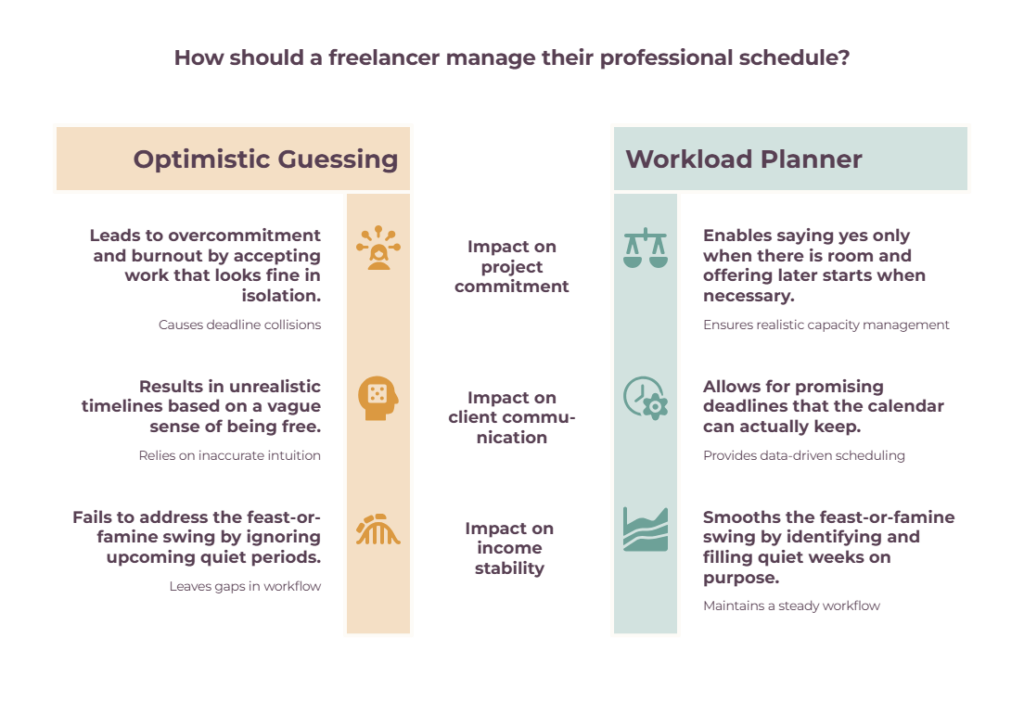
The planner replaces the guess with a number.
That optimistic guessing is what drives the two things freelancers complain about most. It causes overcommitment and burnout — which the WHO classifies as an occupational phenomenon resulting from chronic workplace stress that hasn’t been managed, not a personal failing — because you keep accepting work that looks fine in isolation until the weeks collide.
And it causes unrealistic timelines, because when a client asks, When can you have it?” you answer based on a vague sense of being free rather than an actual look at your booked hours.
Seeing your capacity laid out fixes both: you say yes when there’s room, offer a later start when there isn’t, and stop promising deadlines your calendar can’t keep.
It also smooths the feast-or-famine swing, since you can see the quiet weeks coming and fill them on purpose (our guide to maintaining a steady workflow goes deeper on that).
How to plan your workload, step by step
Work out your realistic available hours, estimate the hours each project needs, slot them into the weeks ahead, and keep every week under capacity with a buffer — then re-plan weekly as things change.
The method is simple; the honesty about your real hours is the hard part.
- Find your real available hours. Not the hours you’re at your desk. A freelancer’s week includes admin, invoicing, chasing leads, email and breaks, and all of it comes out of the same day. Someone working a 40-hour week might find 25–30 of those hours are genuinely available for client work, but your own number depends on how much selling you do, how admin-heavy your clients are, and what you actually charge for. Work it out once from a real week, then plan against that figure rather than the one on your timesheet.
- Estimate hours per project. For each piece of work, put a realistic hours estimate on it — and add a margin, because people systematically underestimate how long their own tasks will take even when they know they’ve run over before. It’s a well-documented bias rather than a personal flaw, which is why the fix is a margin rather than more discipline.
- Slot the hours into weeks. Spread each project’s hours across the weeks it’ll actually be worked, not just its deadline week. A 20-hour project due in three weeks isn’t 20 hours that week.
- Keep every week under capacity, with buffer. Aim to book below your available hours, not right up to them. The gap absorbs the job that overruns, the client emergency, and the sick day — and you lose less than you’d think, since output per hour falls as hours rise, sharply once the week gets long. A week planned to 100% is already over.
- Re-plan weekly. Workloads shift — projects slip, new ones land. A five-minute weekly review keeps the planner honest, and pairs perfectly with time blocking, where you turn each planned week into actual calendar blocks.
Spreadsheet or software?
For a solo freelancer, a simple spreadsheet workload planner is all you need. Dedicated workload or project-management software earns its place once you’re subcontracting or running a small team and need a shared, visual view of who’s doing what.
As a rule of thumb: don’t pay for capacity you don’t have.
The template above does the whole job for one person: your hours, your commitments, your weeks.
The “workload planner” features inside team tools like monday or Teamwork are built for a different problem — a manager balancing tasks across several people and dragging work between them.
That’s actually useful once you’ve got collaborators or subcontractors, and our roundup of the best project management software for freelancers covers those options.
Until then, a sheet you update in five minutes a week beats a platform you have to manage. The planner can sit alongside the other freelance management tools you use for projects, clients, time, and admin, while your wider freelance workflow management system ties the work together.
Wrapping up
The reason freelancers end up drowning isn’t that they work too little — it’s that they say yes without being able to see what they’ve already promised.
A workload planner gives you that view: your real hours, your committed hours, and the weeks where the two collide.
Grab the free template, fill in the next few weeks honestly, and the next time a client asks “can you fit this in?”, you’ll answer with a glance instead of a guess — and protect yourself from the week that would have buried you.
Frequently Asked Questions
What is a workload planner?
It’s a tool — a spreadsheet or software — that maps the hours you’ve committed against your available capacity over the weeks ahead, so you can see at a glance whether you’ve taken on too much.
For a freelancer, it turns “can I fit this in?” from a guess into a clear yes or no based on your actual booked hours.
How do freelancers plan their workload?
Start with your realistic available hours per week (not your total working hours — subtract admin, sales, and breaks), estimate the hours each project needs, and slot those hours into the weeks they’ll be worked.
Keep each week below capacity so there’s buffer for overruns, and re-plan briefly every week as things change.
How do I know if I’ve taken on too much?
Add up the hours you’ve committed for a given week and compare them to your realistic available hours. If committed hours exceed your capacity (over 100% load), you’ve taken on too much for that week, and something will slip or eat your evenings.
A workload planner shows this before you agree to the work, not after.
How many billable hours can a freelancer realistically work?
Fewer than the length of your working week, though the gap varies a lot.
Admin, invoicing, finding new work, email and breaks all come out of the same hours — so a freelancer putting in a 40-hour week might end up with 25–30 hours of genuinely billable focused time.
That’s an illustration, not a target: a retainer-heavy consultant with no sales pipeline will land higher, and anyone pitching constantly or running a lot of client comms will land lower.
The number that matters is your own.
All you need to do is track one ordinary week, split it into client work and everything else, and plan against what you find rather than what your calendar implies.
Should I use a spreadsheet or software to plan my workload?
A spreadsheet is ideal for a solo freelancer — it’s free, quick, and shows your capacity across the weeks ahead.
Workload features in team software are built for managing several people’s tasks, so they’re worth it only once you’re subcontracting or building a team. Start with the free template and upgrade only if you scale.
Related guides: freelance workflow management · time blocking app · the 1-3-5 rule · how to maintain a steady workflow as a solo freelancer · best project management software for freelancers · freelance management tools