
The Best Time Blocking App for Freelancers (Free & Paid)
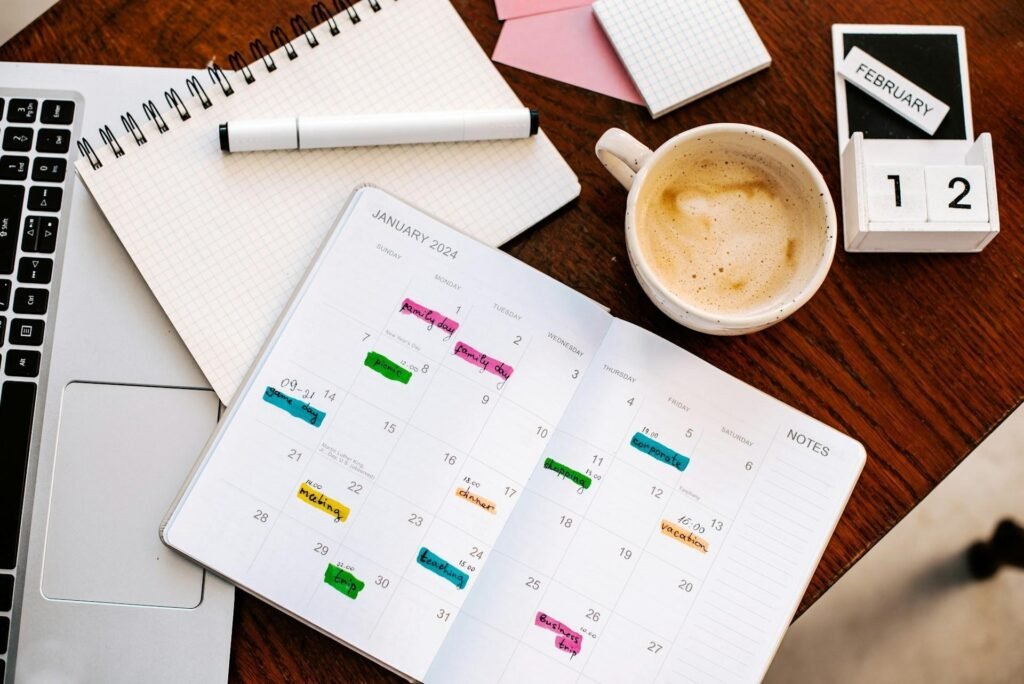
A time blocking app can turn a tidy to-do list into an actual plan for your day — because a list alone still leaves one problem: when will you do any of it? You write fifteen items in the morning, neatly ordered, and you feel organized just looking at it. Then the day happens.
By five o’clock you’ve knocked out the five quick things, answered a pile of email, and the one task that actually mattered is still sitting there, untouched, sliding onto tomorrow’s list to lose all over again.
That’s the flaw in a to-do list: it tells you what to do, but never when. So the important, effortful work keeps losing to whatever’s quick and loud, because nothing on the list has a claim on your actual hours.
If deciding what to work on is the bigger problem, an AI to-do list can help prioritize and organize the tasks before you put them on your calendar.
Time blocking fixes exactly that.
You give each task a specific slot on your calendar, so your day is decided in advance instead of reacted to — and the important work finally gets a time, not just a line.
The right app makes that habit stick (though honestly, plain Google Calendar does the job for a lot of people).
Below are the best time blocking apps for freelancers — free and paid — what each is best for, how to actually time block your day, and the mistakes that make people give up on it.
(Prices are approximate, in USD, and verified August 2026. App pricing changes often — confirm on each app’s own page before subscribing.)
Quick Takeaways
- The top picks: Google Calendar (free/DIY), TickTick (to-do list; blocking on Premium), Trevor AI (cheap and dedicated), Sunsama (guided planning), Akiflow (power users), Motion (AI auto-scheduling), and Reclaim (fits blocks around meetings).
- You can time block for free — Google Calendar, Trevor AI, and Reclaim’s free tier all do it (TickTick’s time blocking needs Premium).
- AI schedulers (Motion, Reclaim) build your blocks for you; manual tools (Sunsama, Akiflow, Google Calendar) keep you in control.
- Time blocking beats a plain list because every task gets a home on the calendar, not just a line to ignore.
- The app matters less than the habit: block your priorities first, leave buffer, and don’t schedule every single minute.
The best time blocking apps, compared
Google Calendar is the pick for free DIY blocking, TickTick for combining to-dos and time blocking in one affordable app, Trevor AI for a cheap dedicated blocker, Sunsama for a guided daily plan, Akiflow for power users, Motion for AI auto-scheduling, and Reclaim for fitting work around meetings.
| App | Best for | Price (approx) | Free plan |
| Google Calendar | Free, DIY time blocking | Free | Yes |
| TickTick | To-do + blocking (Premium) | Free to-do; Premium ~$3/mo | Blocking on Premium |
| Trevor AI | Cheap dedicated blocker | Free; Pro ~$5/mo | Yes |
| Sunsama | A calm, guided daily plan | $17/mo annual ($22 monthly) | No (14-day trial) |
| Akiflow | Power users with lots of tasks | $19/mo annual ($34 monthly) | No (7-day trial) |
| Motion | AI auto-scheduling | $19/mo annual ($29 monthly) | No |
| Reclaim | Fitting blocks around meetings | Free; Starter ~$10/mo | Yes |
What is time blocking (and why it works)?
Time blocking means assigning each task to a specific slot on your calendar, so your day is decided in advance instead of reacted to. It beats a plain to-do list because every task gets a home and a time, not just a place in a queue.
When your calendar says “9–11am: finish the client homepage,” that work has claimed real hours — and it’s far harder for a stray email to quietly steal them.
A few related techniques are worth knowing, because the best apps support all of them. Task batching groups similar work into one block — all your admin in a single afternoon slot rather than scattered through the day.
Day theming dedicates a whole day to one type of work, which suits freelancers juggling different clients or hats (Mondays for client A, Tuesdays for your own marketing).
And time boxing gives a task a fixed limit — “one hour on this proposal, then stop” — to keep perfectionism in check.
They all share the same core idea: decide when the work happens, in advance, so you’re executing your plan instead of constantly choosing what to do next.
The best time blocking apps for freelancers, reviewed

Google Calendar
Best for free, DIY time blocking- Price: Free
- Platform: Web, iOS, Android
- Free plan: Yes — the whole thing is free
- The catch: Manual — no task management or smart scheduling
Google Calendar is the simplest way to start time blocking for free: drag tasks onto your day as events, color-code them, and you’ve got a time-blocked calendar you already know how to use. For a lot of freelancers, it’s all they need.
TickTick
Best free to-do list with time blocking- Price: Free; Premium ~$3.99/mo
- Platform: Web, iOS, Android, desktop
- Free plan: Yes — genuinely usable
- The catch: Calendar isn’t as powerful as a dedicated scheduler
TickTick pairs a proper to-do list with a calendar and timeline view, so you can write a task and drop it straight into a time block in the same app. It closes the gap between your list and your calendar — for little or nothing.
Trevor AI
Best cheap dedicated time blocker- Price: Free; Pro ~$5/mo
- Platform: Web, iOS, Android
- Free plan: Yes
- The catch: Smaller and simpler than the big names; fewer integrations
Trevor AI is built specifically for time blocking: drag tasks from your list onto your calendar and light AI suggests when to slot them, all on a free plan or a very cheap Pro tier. It does one job and does it well.
Sunsama
Best for a calm, guided daily plan- Price: ~$20/mo (no free plan; 14-day trial)
- Platform: Web, iOS, Android
- Free plan: No
- The catch: Priciest manual option here, and no free tier
Sunsama walks you through planning a realistic, time-blocked day and gently stops you overcommitting. It’s the pick if auto-schedulers stress you out and you’d rather decide everything yourself — time blocking as a calm daily ritual.
Akiflow
Best for power users with lots of tasks- Price: ~$19/mo (no free plan; 7-day trial)
- Platform: Web, desktop, iOS, Android
- Free plan: No
- The catch: Pricey, and more tool than a lighter user needs
Akiflow pulls tasks from all your apps into one command bar and lets you fire them onto time blocks fast. It’s the tool for freelancers and consultants wrangling a heavy, messy task load across lots of sources.
Motion
Best AI auto-scheduling- Price: ~19/user/mo(annual;~29 monthly)
- Platform: Web, iOS, Android, desktop
- Free plan: No
- The catch: Pricey; the constant auto-shuffling can become its own distraction
Motion uses AI to build your time blocks for you — it takes your tasks and deadlines and arranges them into your calendar, reshuffling when things change. It’s the hands-off end of time blocking, for freelancers who freeze on planning.
Reclaim
Best for fitting blocks around meetings- Price: Free (Lite); Starter ~$10/seat/mo
- Platform: Web (on top of Google/Outlook Calendar)
- Free plan: Yes — Lite, for a single user
- The catch: Calendar-centric rather than a standalone planner
Reclaim automatically slots your task blocks into the gaps around your existing meetings and defends your focus time. It’s ideal for freelancers whose days are broken up by client calls — and the free tier is genuinely useful.
How to time block your day (the right way)

Pick your priorities first, block your most important task in your best-energy window, batch the small stuff, and leave buffer between blocks so real life doesn’t derail the whole plan. The app is easy; doing it well is the part that actually changes your days.
- Choose your priorities first. Before you touch the calendar, decide what actually matters today. This is where the 1-3-5 rule pairs perfectly — one big task, three medium, five small — so you’re blocking the right things, not just filling time.
- Block the big task in your peak window. Put your most important, hardest task in the hours when you think most clearly, usually the morning, and protect that block from everything else. If distractions are still breaking through those blocks, these strategies for how to stay focused when working from home can help protect that time.
- Batch the small stuff. Group the little tasks into one block rather than scattering them, so they don’t fragment your focus all day.
- Block admin, email, and breaks too. Give your email a dedicated window instead of letting it leak everywhere (see email management systems), and block actual breaks — a plan with no rest isn’t realistic.
- Leave buffer. Don’t butt blocks up against each other. Gaps absorb the call that runs long and the task that overshoots.
- Review and re-block tomorrow. At the end of the day, glance at what slipped and block tomorrow — it takes five minutes and means you start the next day already planned.
Common time blocking mistakes to avoid
Time blocking is simple, which makes it easy to do in the ways that make you quit. The usual traps:
- Over-scheduling every minute. A calendar packed wall to wall has no room for reality, so the first delay topples the whole thing. Leave white space on purpose.
- No buffer between blocks. Back-to-back blocks assume everything runs exactly to time. It won’t. Build in gaps.
- Ignoring your energy. Blocking your hardest task for 3pm, when you’re flagging, sets it up to fail. Match demanding work to your best hours.
- Treating blocks as a prison. The point of a block is a plan, not a contract. When a day goes sideways, drag the blocks around and carry on — don’t abandon the whole system because one afternoon slipped.
How to choose the right time blocking app
Pick based on what you want the app to do for you — go free if you just want to start, AI if you want your day built for you, or guided if you want a calm daily ritual. This table sums it up.
| If you… | Pick | Why |
| Just want to start, for free | Google Calendar | Free and simple, no learning curve |
| Want AI to build your day | Motion | Auto-schedules your blocks for you |
| Want a calm, guided plan | Sunsama | Walks you through a realistic day |
| Juggle tons of tasks | Akiflow | Fast, consolidates everything |
| Live in client meetings | Reclaim | Fits work around your calendar (free tier) |
| Want cheap and dedicated | Trevor AI | Purpose-built blocking, low cost |
Most freelancers can start free — Google Calendar, Trevor AI, and Reclaim’s Lite plan all cost nothing (TickTick is free to use, but its time blocking is a Premium feature).
The point to pay is when you want something specific: AI to plan your day for you, a guided ritual to stop overcommitting, or a power tool to wrangle a heavy task load.
And if time blocking is only one part of the system you’re building, our guide to productivity tools for freelancers covers the broader stack for tasks, focus, planning, communication, and everyday work.
The bottom line
The best time blocking app is the one you’ll actually open every morning. Start free with Google Calendar, Trevor AI, or Reclaim, and add more advanced AI (Motion) or guided planning (Sunsama) only if you find you want it.
Whichever you choose, remember the tool is the easy part — the habit is what changes your days.
Block your priorities, leave yourself some buffer, and give the important work an actual time instead of a line on a list, and you’ll end far more days having done the thing that mattered.
Frequently Asked Questions
What’s the best time blocking app?
For most freelancers, Google Calendar is the best place to start — it’s free, familiar, and does real time blocking.
If you want more, Motion is best for AI auto-scheduling, Sunsama for a calm guided plan, Akiflow for heavy task loads, and Reclaim for fitting work around meetings. The right one depends on whether you want to plan manually or have it done for you.
What’s the best free time blocking app?
Google Calendar is the best genuinely free option — straightforward drag-and-drop blocking at no cost. TickTick is free as a to-do list, but its calendar views and time blocking require Premium.
Trevor AI has a free plan too, and Reclaim’s free Lite tier does smart time blocking for a single user.
What’s the best AI time blocking app?
Motion is the strongest for fully automatic AI scheduling — it builds and reshuffles your entire day around your tasks and deadlines.
Reclaim is a great AI alternative that fits tasks into the gaps around your meetings and has a free tier, and Trevor AI adds lighter AI suggestions on a cheaper plan.
Can I time block with Google Calendar?
Yes — Google Calendar is one of the most popular time blocking tools precisely because it’s free and simple. Just create an event for each task, give it a start and end time, and color-code by type of work.
Pair it with a separate to-do app and you’ve got a complete, free time blocking setup.
What is time blocking, and how do I start?
Time blocking is assigning each task to a specific slot on your calendar so your day is planned in advance.
To start, pick your top priorities for the day, block your most important task into your best-energy hours, batch the small tasks together, and leave buffer between blocks. You can do all of it in a free calendar app.
Do I need an app, or is a calendar enough?
For many freelancers, a calendar is enough — Google Calendar handles time blocking perfectly well for free.
A dedicated app earns its place when you want extras a calendar doesn’t offer: AI that schedules for you, tasks and calendar in one view, or guided daily planning. Start with a calendar and upgrade only if you hit its limits.
Related guides: the best AI to-do list apps · the 1-3-5 rule · how to stay focused when working from home · productivity tools for freelancers · email management systems