Email Management Systems: How to Get Your Inbox Under Control
The reason email management systems exist is simple: there’s an inbox somewhere with 4,000 unread messages in it, and you’re a little bit scared to open it.
Maybe it’s yours.
Or maybe your inbox looks fine, but a promising lead sat in it for three days before you replied — by which point they’d hired someone else.
Or you get to the end of a day you spent “on email,” look at what you actually built, and it’s nothing. And every so often a client asks, “did you get my message?” — because it was there, buried under newsletters, and you missed it.
That’s the trap of email for a freelancer.
Your inbox is the front line of your entire business — the leads, the client requests, the invoices, the approvals all land there — and at the same time it’s the single biggest threat to your focus, because it will happily eat your whole day if you let it.
You can’t ignore it, and you can’t live in it. Both of those cost you money.
The fix isn’t a tidier app or a heroic weekend cleanout that lasts a week. It’s a system: a repeatable way to keep your inbox under control without living inside it.
Below is what an email management system actually is, how to build one (it works with any email, and it’s free), the best tools if you decide you want one, and how to make the whole thing stick.
Quick Takeaways
- Email management systems combine repeatable habits — optionally with supporting tools — to keep your inbox under control without letting it run your day.
- The single biggest win is batching: check email at set times, not like a live chat window.
- Process each email once — do it, defer it, delegate it, or delete/archive it — then get it out of your inbox.
- Filters, labels, and templates do the repetitive work for you, especially auto-labeling email by client.
- Most freelancers need better habits more than new software — native Gmail or Outlook plus a system beats any paid app used badly.
What Are Email Management Systems?

Email management systems are repeatable sets of habits — and, if you want, supporting tools — for keeping your inbox under control: processing messages consistently, sorting them automatically, and checking them at set times so email serves your work instead of interrupting it.
The word “system” is doing the heavy lifting: it’s the process, not the software.
The same principle applies beyond your inbox: good freelance workflow management gives client requests, tasks, approvals, and follow-ups a consistent path from start to finish.
That distinction matters, because most people reach for a new app when what they actually need is a new habit.
A tool can filter and sort and draft for you, but if you still check your inbox every four minutes and let messages pile up half-read, no app will save you.
Get the habits right, and a free inbox works beautifully; get them wrong and a $30-a-month tool just gives you a nicer place to feel overwhelmed.
So this guide starts with the system, which costs nothing and works in any email client — and everything here is about your inbox as a solo freelancer. If you’ve grown to a team answering email together, there’s a note on shared inboxes near the end.
How to build your email management system
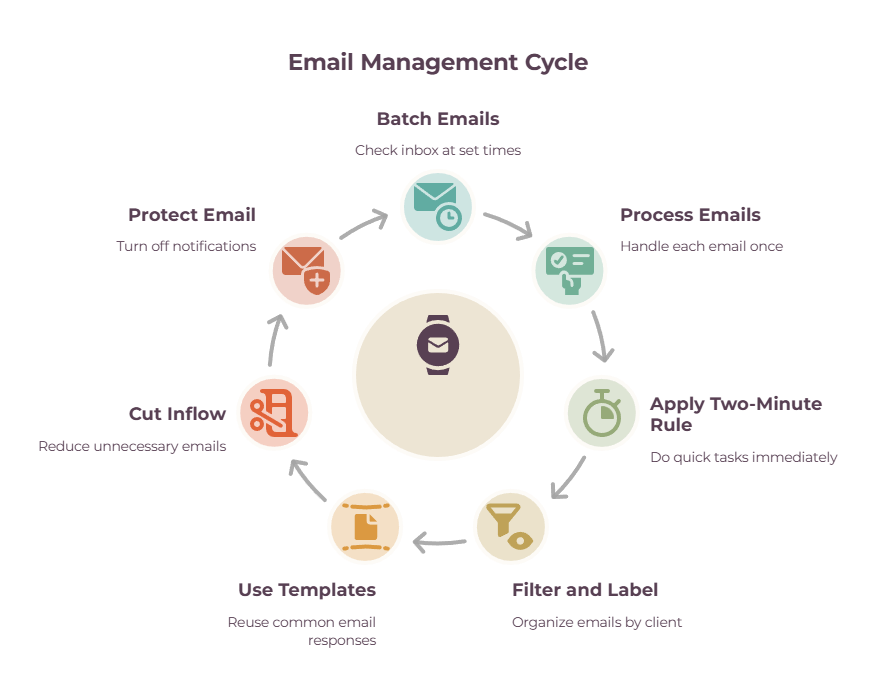
The system comes down to six habits: batch your email into set times, process each message once, auto-sort with filters and labels, reuse templates, cut the incoming volume, and protect your attention by turning off notifications. None of them require software, and together they’re what actually tames an inbox.
- Batch it
This is the big one. Instead of treating your inbox like a live chat you dip into all day, check it at set times — say, mid-morning, after lunch, and before you finish.
Email is almost never as urgent as it feels, and processing it in two or three focused blocks protects the deep-work hours where you actually earn your money.
- Process each email once
When you open a message, deal with it there and then: do it, defer it (snooze it or turn it into a task for later), delegate it, or delete/archive it.
What you don’t do is read it, feel a flicker of stress, and leave it sitting there to read again tomorrow. The goal is an empty inbox at the end of a batch, not a tidy pile of things you’ve looked at twice.
- Use the two-minute rule
If an email will take under two minutes to handle, do it immediately. Deferring the quick ones just clogs your inbox and your head.
- Filter and label by client
Set up rules so email from each client or project auto-labels itself as it arrives. For a freelancer juggling several clients, this means your inbox sorts itself — you can see everything from one client in one place, and nothing important hides in the noise.
- Build a template library
You answer the same emails constantly — quotes, meeting confirmations, project updates, chasing an invoice. Save them as templates (or canned responses) and reuse them in seconds. Our copy-paste invoice email templates are a good place to start.
- Cut the inflow
The best email is the one that never arrives. Unsubscribe ruthlessly from newsletters you never read, tighten your spam filters, and use a separate work address for clients so business email isn’t buried under personal noise.
- Protect it
Turn off email notifications. A pinging inbox turns every message into an interruption; without the pings, your inbox becomes a place you visit on your terms rather than a stream you’re forced to monitor (see how to stay focused when working from home).
The best email management tools for freelancers
The best email management systems don’t necessarily require paid software — for most freelancers, Gmail or Outlook plus the habits above is enough. If you want more, SaneBox adds smart filtering to any inbox, Spark is the best free upgrade, and Superhuman is the premium speed pick.
Here’s how the main options stack up.
| Tool | Best for | Price (approx) |
| Gmail / Outlook (native) | Most freelancers — start here | Free |
| SaneBox | Smart filtering on any client | ~$7/mo |
| Spark | Best free upgrade + AI | Free; Plus from ~$8.25/mo annual ($10 monthly) |
| Superhuman | Speed + AI drafting | ~$33–40/mo (Business) |
| Shortwave | AI email for Gmail | Free; Business ~$30+/seat/mo |
| Clean Email | One-off inbox cleanup | ~$30/yr |
Start with what you already have.
Gmail and Outlook both do filters, labels or folders, templates, snoozing, and scheduled send — genuinely enough to run the whole system above for free.
If you want to add something, SaneBox is the smartest cheap upgrade: it layers AI filtering on top of your existing inbox and quietly moves unimportant mail out of the way, without switching apps. Three tiers — Snack (one account), Lunch (two), Dinner (four) — with a free trial and no free plan.
Spark is the best free standalone client, and its free tier is genuinely generous: unlimited email accounts, Smart Inbox, and core email productivity features. Its Plus plan costs $8.25 a month when billed annually ($99 a year), or $10 month-to-month, and adds advanced productivity and AI features.
Superhuman is the premium pick — fast, keyboard-driven, with AI that triages your inbox and drafts replies in your voice. Since Grammarly acquired it, new users get the Business plan at $33 a member per month (annual) or $40 month-to-month; it’s worth it only if email speed is genuinely your bottleneck.
Shortwave brings strong AI to Gmail and still offers a free plan, including many of its core productivity features. Paid plans (Business $30 a month) add features such as full email-history imports and more advanced AI capabilities, and billing works per person — a paid team can consist of just one user.
And Clean Email isn’t a daily driver at all — it’s a one-off tool for bulk-unsubscribing and sorting when your inbox is already a disaster, with a limited permanent free tier and paid plans priced by how many accounts you connect.
The takeaway: most freelancers get further by fixing their habits than by buying any of these.
Email is only one part of the setup, though — our guide to productivity tools for freelancers covers the broader stack for managing tasks, focus, communication, and everyday work.
(Prices are in USD and were checked against each provider’s own pricing page in August 2026. Tool pricing changes often — confirm before you buy.)
Everything so far assumes you’re the only person in your inbox.
Once that changes — you bring on a virtual assistant, a subcontractor, or a partner who answers client email alongside you — a personal email tool stops being enough.
That’s when a shared inbox earns its place. Tools like Missive, Front, Help Scout, and Hiver turn a mailbox into something a small team can run together, with messages assigned to a person, internal comments on a thread so you can discuss a reply without forwarding it around, and shared labels so nothing gets answered twice or dropped.
It’s genuinely useful once more than one person is responsible for the inbox — and overkill until then, so don’t reach for it while you’re still a team of one.
Make your email system stick
A system only works if it becomes a routine, so batch your email at the same times each day, keep a couple of templates handy for your most common replies, and do a quick weekly tidy, so your inbox never spirals again.
The freelancers who stay on top of email aren’t the ones with the cleverest setup — they’re the ones who do the boring routine consistently.
Three things make it hold. Anchor your batch times to your day so they happen automatically — after your morning deep-work block, after lunch, before you log off. Keep your templates one click away so the repeat replies never eat your time.
And run a five-minute weekly tidy — unsubscribe from whatever slipped through, clear the stragglers, glance at what’s outstanding — so the inbox never builds back up to that scary number.
Judge yourself on whether the inbox is empty at the end of the day, not on whether you’ve “seen” everything, and pair the batching with a focus method like the 1-3-5 rule so email stays a task you do, not the thing you do instead of real work.
The bottom line
Your inbox will never truly be “done” — there’s always another email coming — but it absolutely can be under control.
Batch it into set times, process each message once, let filters and templates do the repetitive work, and turn off the notifications that turn every message into an interruption, and email stops running your day.
Build the system first with the tools you already have; add a paid app only if, after that, you still want one.
Get this right and your inbox goes back to being what it should be: the place your next paying client lands, not the reason you never got any work done.
Frequently Asked Questions
What Are Email Management Systems?
Email management systems are repeatable ways of keeping an inbox under control using habits such as batching, consistent processing, filters, and scheduled check-ins, optionally supported by dedicated software.
How do freelancers manage their email?
The most effective approach is to batch email into set times rather than checking constantly, process each message once (do it, defer it, delegate it, or archive it), auto-label incoming mail by client, and reuse templates for common replies. Turning off notifications and unsubscribing aggressively keeps both the volume and the distraction down.
What’s the best email management tool?
For most freelancers, native Gmail or Outlook plus good habits is all you need. If you want to add something, SaneBox is the best cheap upgrade for smart filtering on any inbox, Spark is the best free client, and Superhuman is the premium pick for speed and AI drafting. The right tool depends on whether your real problem is volume, speed, or focus.
What is inbox zero, and is it realistic?
Inbox zero means processing your inbox down to empty — not leaving messages sitting unread, but deciding on each one and getting it out. It’s realistic if you treat “zero” as “nothing left to decide on,” reached during set email blocks, rather than an inbox that’s literally empty every second. Done that way, it’s very achievable for a freelancer.
How do I stop email taking over my day?
Batch it into two or three set times, turn off notifications so it can’t interrupt you, and protect your best hours for actual client work. Email feels urgent far more often than it is; checking it on a schedule rather than continuously is the single biggest change you can make.
Do I need email software, or just better habits?
Usually just better habits. A tool can filter, sort, and draft for you, but it can’t make you stop checking your inbox every few minutes or process messages properly.
Build the system first with the free tools you already have, and add paid software only if you still want more speed or automation afterward.
Related guides: how to stay focused when working from home · the 1-3-5 rule · freelance workflow management · productivity tools for freelancers