Invoice Automation: 5 Easy Ways to Get Paid Faster

It’s the last evening of the month again. You’re rebuilding the same three retainer invoices by hand, copy-pasting the same “just a friendly reminder” emails to the same slow payers, and re-typing every payment into a spreadsheet — exactly the kind of repetitive work invoice automation can eliminate.
Same chore, every month, forever.
Almost none of that needs a human these days. In fact, invoicing like this is one of the most automatable parts of running a freelance business.
And don’t worry, this isn’t complicated AI or Zapier setups that you’ve been putting off. Quite simply, invoice automation for a freelancer means switching the repetitive parts of invoicing to autopilot, one at a time, so the invoices send themselves, chase themselves, and land in your books without you touching them.
Below are the five parts you can automate, whether it’s actually worth it, and how to do it without paying for expensive software.
Quick Takeaways
- Five parts of invoicing you can automate: recurring invoices, payment reminders, online or automatic payment, late fees, and syncing to your books.
- A standard invoicing tool — even a free one — handles most of this. You don’t need enterprise “AP automation.”
- Recurring invoices and automatic reminders are the two biggest wins; set those up first.
- Automation gets you paid faster, because reminders go out on time every time, without you having to steel yourself to send them.
- Automate the repetitive work, but still glance at your invoices weekly — set-and-forget isn’t set-and-ignore.
What is invoice automation?
Invoice automation uses your invoicing tool to handle the repetitive parts of billing for you — generating recurring invoices, sending reminders, collecting payments, and recording them — so invoicing runs with almost no manual effort.
For a freelancer, it’s about the invoices you send, not the enterprise systems companies use to process the supplier bills they receive.
The payoff is simple: an evening of monthly admin becomes a few minutes, and you get paid faster because nothing waits on you remembering to do it.
You don’t need special skills or expensive software — just a good invoicing tool for freelancers and a bit of one-time setup. Here’s what to automate.
The 5 parts of invoicing you can put on autopilot
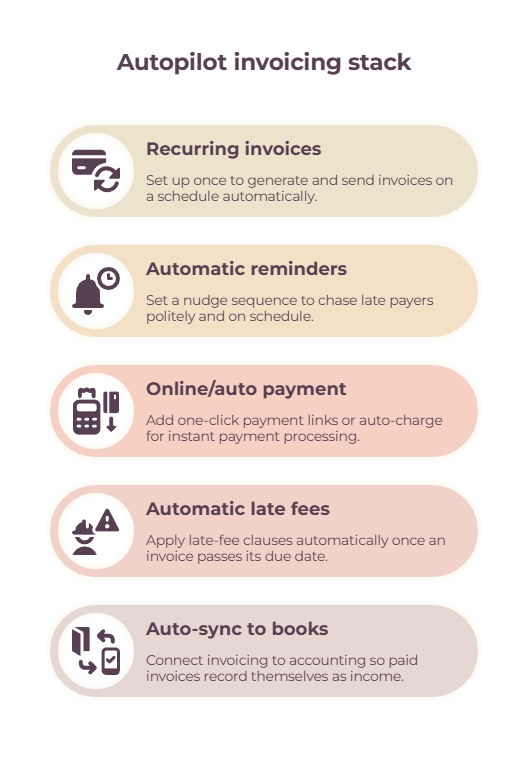
Every freelancer can automate the same five things: recurring invoices, payment reminders, online payment, late fees, and syncing paid invoices to their books. Set them up once and invoicing mostly runs itself. Here’s each, with how to switch it on.
1. Recurring invoices for retainers and subscriptions
Set a recurring invoice up once, and your tool generates and sends the same invoice on the same day every week or month, automatically — which is perfect for retainer clients. The most repetitive invoice you send is the one you should never build twice.
In your invoicing tool, create the invoice as normal, then set it to repeat on a schedule (say, the 1st of each month) and, if you like, send itself without you approving each one.
Three retainer clients that used to mean three manual invoices a month now bill themselves while you sleep.
2. Automatic payment reminders
Set a reminder sequence — a nudge at the due date, then again at +5 and +10 days — and your tool chases late payers for you, politely and on schedule. The follow-up that actually gets you paid is the one you don’t have to talk yourself into sending.
This matters because late payment is the norm, not the exception: Remote’s 2025 report found 85% of freelancers are paid late at least some of the time, and a Bonsai analysis found 29% of invoices are paid at least a day late.
Left to willpower, the “just following up 🙂” email gets postponed for days; automated, it goes out on time and quietly does the work. For the wider impact of slow payment, see cash flow problems for freelancers.
3. Online and automatic payment
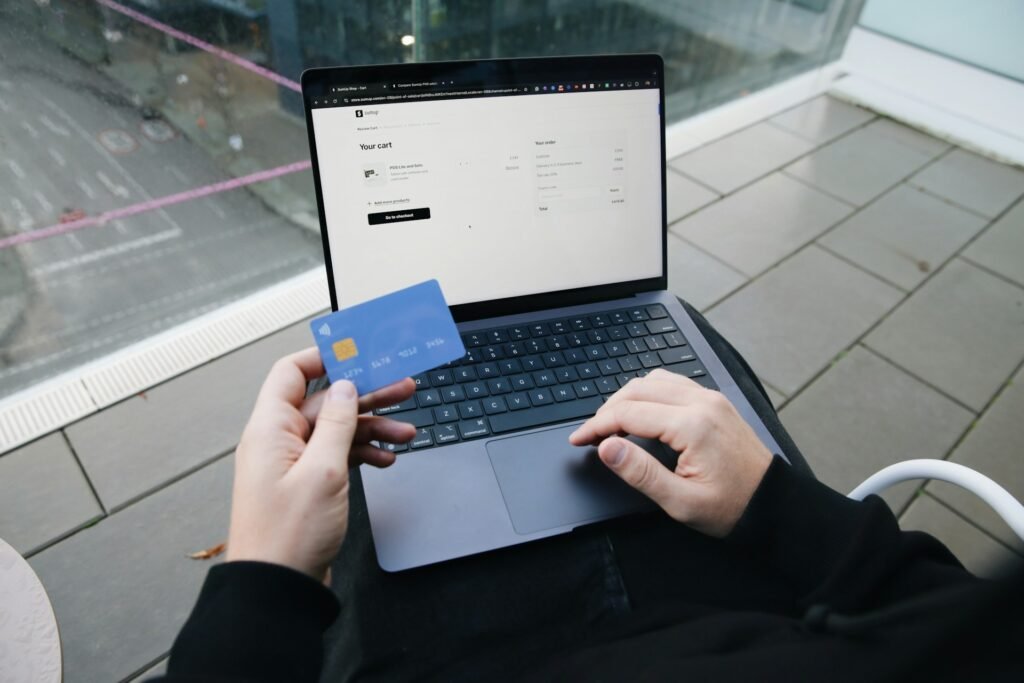
Add a one-click payment link so clients pay by card or bank instantly, and for retainer clients, offer auto-charge — with their consent — so the money simply arrives on schedule. Every extra step between “invoice received” and “invoice paid” is a chance for it to be forgotten.
Connect a payment processor like Stripe or PayPal inside your invoicing tool, and clients can pay the moment they open the invoice.
For ongoing clients, saved-card auto-billing means a retainer pays itself on the 1st with nobody lifting a finger. Just get explicit agreement before you auto-charge anyone.
4. Automatic late fees
Put a late-fee clause in your terms and let your tool apply it automatically once an invoice passes its due date, so slow payment carries a built-in consequence you never have to enforce by hand.
A fee that applies itself is far easier than a fee you have to bring up.
You may rarely actually collect it — the point is that its presence and automatic application nudge clients to pay on time. Set the rule once in your invoicing settings, and it runs in the background.
5. Auto-sync paid invoices to your books
Connect your invoicing to your accounting so paid invoices record themselves as income — reconciled and tax-ready — with no double entry.
The last manual step in most invoicing routines is re-typing paid invoices into a spreadsheet, and it’s the easiest one to delete.
An all-in-one tool does this natively; otherwise you can connect your invoicing app to your accounting app so the two stay in sync. Come tax time, your income is already recorded and exportable in a couple of clicks.
Our guides to bookkeeping for self-employed and accounting tips for freelancers cover the record-keeping side.
Is invoice automation even worth it for a freelancer?

For anything you do repeatedly — billing retainers and chasing late payers — automation is absolutely worth it, and it’s usually free or near-free inside a tool you’d be using anyway.
The time it saves and the faster payments more than justify an afternoon of setup.
What’s not worth it for a solo business is the heavy enterprise machinery — OCR data capture, multi-step approval workflows, and complex integrations built for finance teams processing hundreds of supplier invoices a week.
As a freelancer sending a handful of invoices, you’d spend more time configuring that than it could ever save. The honest rule of thumb: automate the parts that repeat, and skip the enterprise gymnastics.
Recurring invoices and automatic reminders alone will hand you back hours a month and get you paid faster — start there.
How to automate your invoicing without paying for expensive software

You can automate recurring invoices, reminders, and online payments cheaply — often for free — with tools like Zoho Invoice or Wave. Zoho Invoice covers all three on its free plan within its usage caps; on Wave, the automation sits behind a condition worth understanding before you set anything up.
Wave’s free Starter plan will generate a recurring invoice on schedule, but sending it through Wave — automatically or manually — needs either the Pro plan ($19/mo, or $190/yr) or online payments switched on. Scheduled reminders and auto-charge work the same way.
Without one of those, Wave creates the invoice, and you still email the PDF yourself.
Zoho’s free tier is genuinely generous, though it caps users and annual invoice volume, and online payments still route through Stripe or PayPal at their usual rates.
Whichever tool you pick, the software can be free. The payment never is.
Enabling online payments like this is the cheaper route if your billing is low-volume, since it costs nothing upfront and only charges when a client actually pays: around 2.9% + $0.60 on cards, or 1% with a $1 minimum on bank payments.
Steady retainer work usually tips the other way, where a flat $19 beats a percentage of everything you bill.
So, rule of thumb, reach for a paid tool only when you want more polish, deeper features, or a slicker client experience.
How to Set Up Invoice Automation
Connect a payment processor, save your recurring clients as repeating invoices, switch on the reminder sequence, and add your late-fee rule.
That’s the bulk of the work done in an afternoon.
If you want to connect apps you already use — say, automatically create an invoice when you mark a project “done” in your project tool — Zapier or Make can wire those gaps together without a dedicated platform.
However, that’s an optional layer for the tinkerers; most freelancers get everything they need from their invoicing tool alone.
For the full comparison of tools worth paying for, see our guide to freelance billing software.
Invoice automation mistakes to avoid
- Setting and ignoring it. Automation runs the process; you still glance at your invoices weekly to catch anything odd.
- The wrong reminder cadence — too aggressive annoys good clients, too soft lets slow ones drift. The due-date / +5 / +10 rhythm works for most.
- Auto-charging without clear consent. Always get explicit agreement before saving a card and billing automatically.
- Automating a messy process. Fix a broken invoicing routine first, then automate it — automation just makes a bad process faster.
- Over-engineering it. You don’t need enterprise tools or elaborate Zapier chains to bill a handful of clients.
- Forgetting to update a recurring invoice when a client’s scope or rate changes.
The bottom line
Start with the two biggest wins — recurring invoices and automatic reminders — set them up once, and invoicing turns from a monthly chore into something that quietly runs itself while you do the work you’re actually paid for.
You don’t need enterprise software or technical skills. You need a normal invoicing tool and one afternoon to switch on the parts that repeat.
Frequently Asked Questions
How do I automate my invoicing as a freelancer?
Use an invoicing tool to put the repetitive parts on autopilot: set up recurring invoices for retainer clients, switch on automatic payment reminders, add a one-click or auto-charge payment option, apply late fees automatically, and sync paid invoices to your accounting.
Most tools, including free ones, handle all of this after a one-time setup.
What parts of invoicing can I automate?
Five main parts: recurring invoices (so retainers bill themselves), payment reminders (so late payers get chased on schedule), online or automatic payment, automatic late fees, and syncing paid invoices to your books.
Recurring invoices and reminders are the biggest time- and money-wins.
How do I set up recurring invoices for retainer clients?
In your invoicing tool, create the invoice as usual, then set it to repeat on a schedule — for example, the 1st of every month — and choose whether it sends automatically or waits for your approval. From then on, that retainer invoice generates and goes out on its own.
How do I send automatic payment reminders?
Turn on your invoicing tool’s reminder settings and set a sequence, such as a reminder on the due date, then again 5 and 10 days after. The tool emails the client automatically at each point, so late payers get chased consistently without you writing anything.
Can I get paid automatically as a freelancer?
Yes. Connect a payment processor like Stripe or PayPal for one-click payment, and for recurring clients you can set up auto-charge on a saved card so the money arrives on schedule. Always get the client’s clear consent before automatically charging them.
Is invoice automation worth it for a solo business?
For the repetitive parts — retainers and chasing late payers — it’s absolutely worth it, and usually free inside a tool you’d use anyway.
Heavy enterprise automation (OCR, approval workflows) isn’t worth it for a freelancer sending a handful of invoices; automate what repeats and skip the rest.
Related guides: best invoicing tool for freelancers · invoice management system · freelance billing software · how to invoice as a freelancer · cash flow problems for freelancers · bookkeeping for self-employed · accounting tips for freelancers